What is Shell and basic Linux Shell Scripting command

I am working as Test Lead with HCL Technologies Germany GmbH.
Hello Community,
Currently, I am in the boat of learning DevOps.!
I took 90DaysOfDevOpsChallenge and this blog is part of my journey. Before moving to the shell script command I would like to explain what is a shell script, the Type of Shell, and How and When to use a shell script file.
What is a shell: A shell is a software that provides an interface for an operating system’s users to provide access to the kernel’s services.
Type of Shell: There are several types of shell available for Linux systems like -
BASH (Bourne Again SHell) – It is most widely used shell in Linux systems. It is used as default login shell in Linux systems and in macOS. It can also be installed on Windows OS.
CSH (C SHell) – The C shell’s syntax and usage are very similar to the C programming language.
KSH (Korn SHell) – The Korn Shell also was the base for the POSIX Shell standard specifications etc.
Each shell does the same job but understands different commands and provides different built-in functions.
How to write a shell script file
File extension: .sh (dot sh)
Start the script with bash bang.
Scripts are also identified with a shebang. Shebang is a combination of bash # and bang ! followed by the bash shell path. This is the very first line of the shell script. Shebang tells the shell to execute it via bash shell.
Example: #! /bin/bash
Let's create a first bash script file
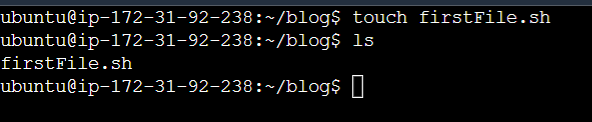
a. Create a file firstFile.sh using the touch firstFile.sh command.
b. Now, Open the created file in the vi editor using vi firstFile.sh command and after opening press I to enable the file in insert mode and add the statement in echo.
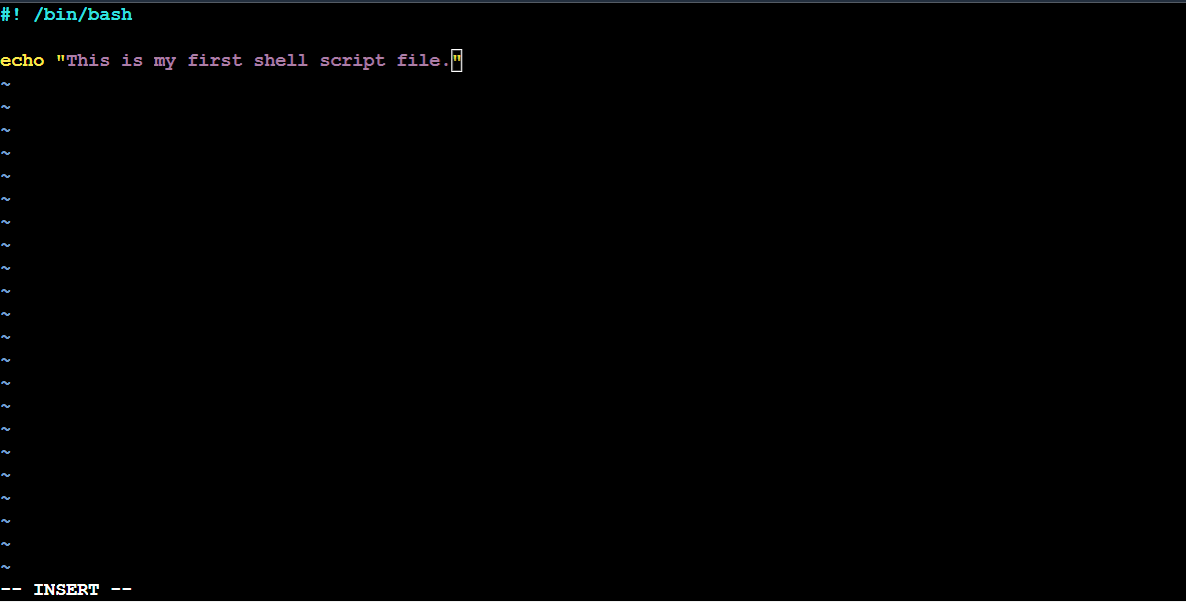
Now save the file first press Esc (escape) key and type :wq (colon wq) to save and quit the file.
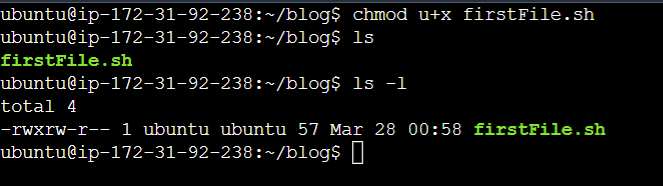
c. After creating the shell file check the permission of the file. If it's executable or not. to check the current permission on file use ls -l command.

In the above screen shot in column 1, you will find the file permission details. as the user has only read and write permission. So we have to modify the permission and make the shell file executable to the user.
Using chmod u+x firstFIle.sh we can change the file permission to execute.
Now execute the created shell file using ./firstFile.sh command
Note: ./ (dot forward slash) denotes the current directory path. If you have any shell script file on another location you can give the path of the shell file and execute it using sh /file path/filename.sh command.

When to use a shell script file
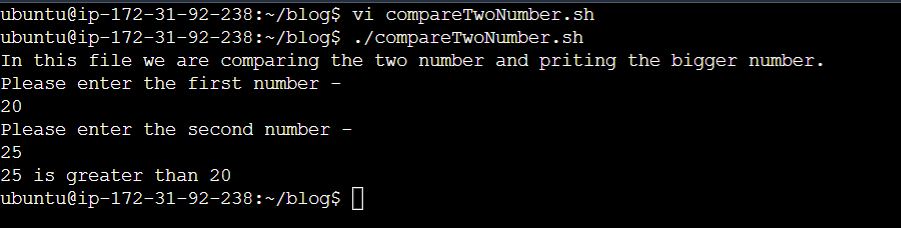
Usually, we use the shell script file where user has to execute a set of steps to achieve the desire results. So without writing one by one on Terminal we create a shell script file to perform those steps. Let's take an example user has to compare two numbers and print the greater number out of them as a result. So there would be some steps like:
First User will read both the numbers.
User will write the steps to compare.
Then, will print the results.
It's a very tedious task to perform on Terminal so to make it more mannerable, we will create a shell script file and put all these steps in it to achieve the result.
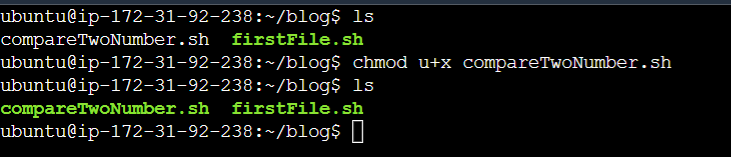
First, create a shell script file with "compareTwoNumber.sh" name.
touch compareTwoNumber.sh

Open the created file in vi editor and add all the steps.
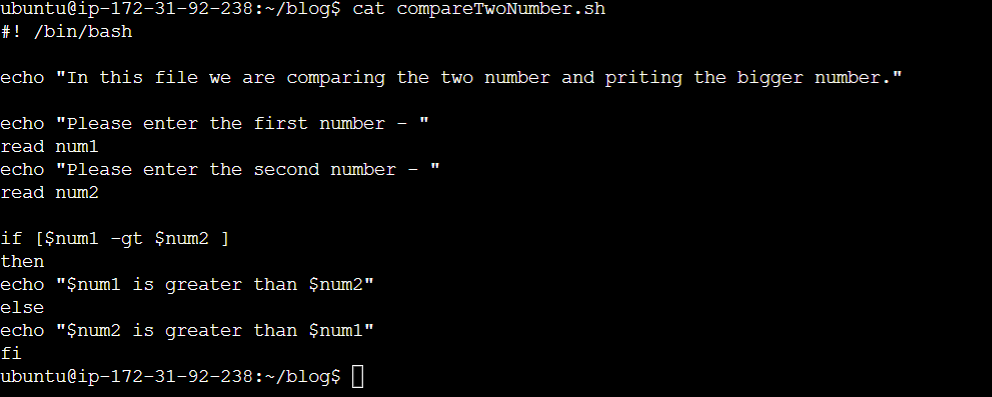
Note: Make sure after creating a shell file, Check the file permission and make it executable if permissions are missing.
Execute the file and validate the results.
Below are Day4 task of my 90DaysDevOps journey
Write a Shell Script which prints I will complete #90DaysOofDevOps challenge.
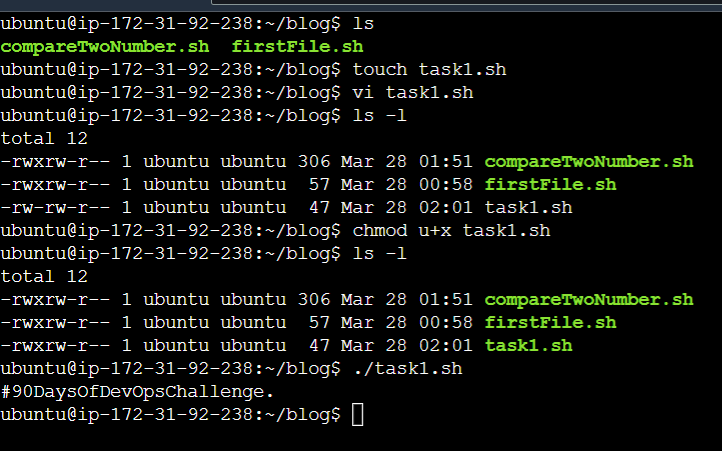
Create a shell script file with "task1.sh" name and put the echo statement inside the file.
- touch task1.sh
- vi task1.sh and press I (using keyboard) to enable INSERT mode.
- echo "#90DaysOofDevOps challenge."
- save the file.
- Check the file permission using ls -l command and make it executable if permission is missing.
- To make the file executable use chmod u+x task1.sh
- Execute the file using ./task1.sh command.
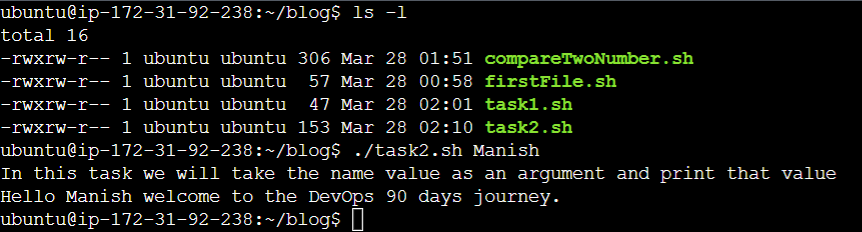
Write a Shell Script to take user input, input from arguments and print the variables.
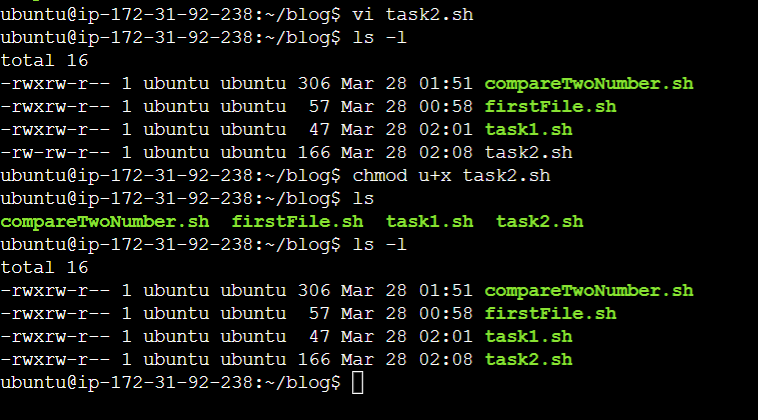
- touch task2.sh
- vi task2.sh and press I (using keyboard) to enable INSERT mode.
- Add a command which store the argument value in variable and print the variable with echo statement.
- save the file.
- Check the file permission using ls -l command and make it executable if permission is missing.
- To make the file executable use chmod u+x task2.sh
- Execute the file using ./task2.sh command.

Write an Example of If else in Shell Scripting by comparing 2 numbers
Solution already explained above.
Hope with the given information you would get understand the basics of shell script commands. Please go through the blogs and share your thoughts on it. I am happy to take suggestions.
Happy Learning.!
#devops #90daysofdevops #cloud #kubernetes #linux #docker #devopstools


